Google Gemini Gems: The Ultimate Guide to Custom AI Experts
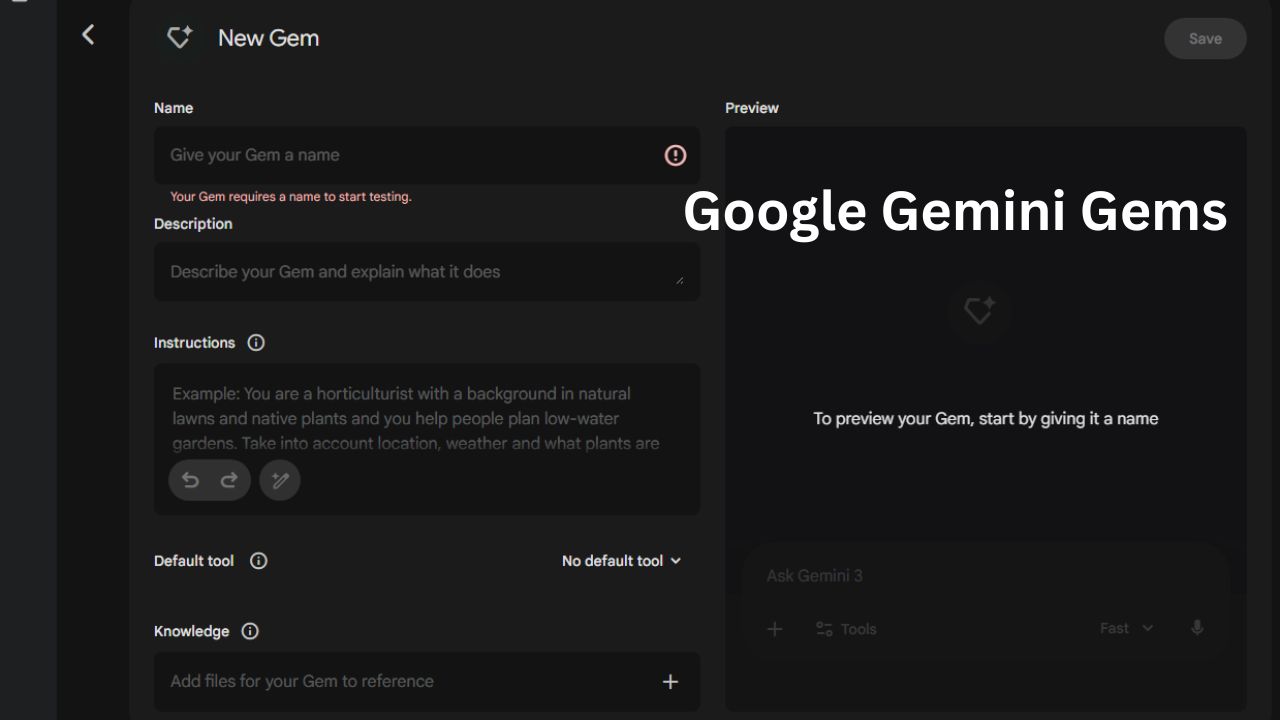
Google Gemini Gems are revolutionizing the way we interact with personalized artificial intelligence. These custom versions of the standard Gemini model allow you to tailor an AI assistant to your specific needs and preferences.
instead of relying on a one-size-fits-all chatbot, you can now deploy a fleet of specialized experts. This shift marks a significant milestone in personal productivity and AI accessibility.
What Are Google Gemini Gems?
Google Gemini Gems are essentially custom AI profiles designed to handle repetitive tasks or provide specialized knowledge. Instead of rewriting the same prompt context every time, you save your instructions into a “Gem” for instant reuse.
Think of them as dedicated team members who never forget their role. A standard chat resets its “memory” of your specific rules in every new session, but Google Gemini Gems retain their unique directive indefinitely.
Whether you need a coding partner, a creative writing coach, or a sous-chef, Google Gemini Gems can be configured to act the part perfectly. They bridge the gap between complex prompt engineering and effortless user experience.
How to Create Custom Google Gemini Gems (Step-by-Step)
Creating your own Google Gemini Gems is a user-friendly process that requires no technical expertise. Follow this detailed walkthrough to build your first custom expert in minutes.
Step 1: Access the Gem Manager
Open the Gemini web interface on your desktop. Look for the “Gem Manager” button in the left-hand sidebar (often represented by a diamond icon) and click it. This opens your central hub for all custom assistants.
Step 2: Initialize a New Gem
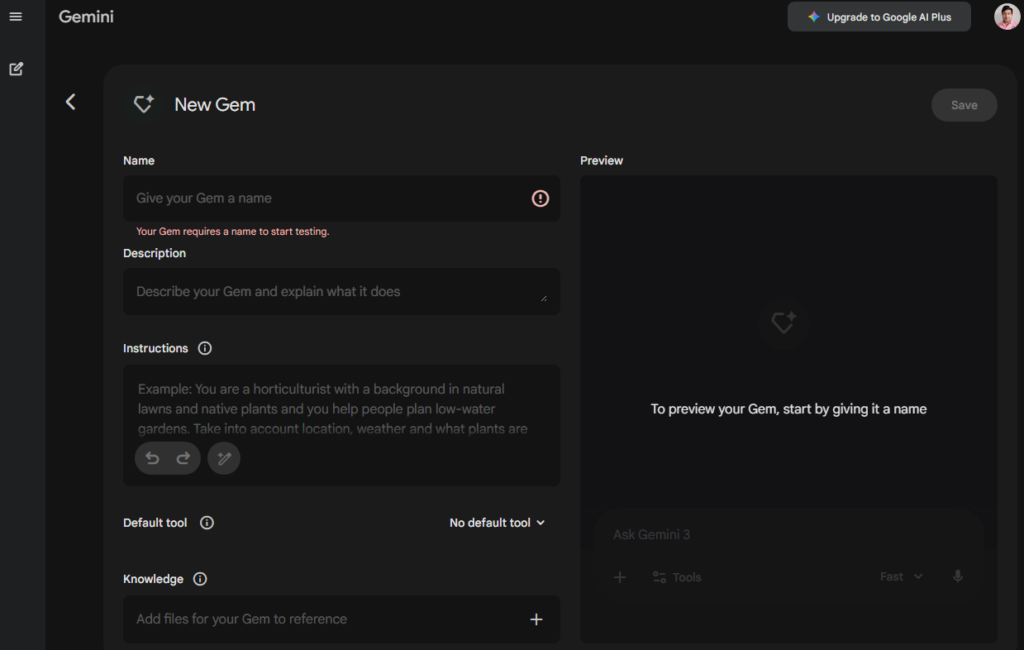
Click the prominent “New Gem” button. You will be presented with a creation menu that asks for two main components:
- Name: Give your Gem a distinct title (e.g., “Senior Python Debugger” or “Email Polisher”) so you can easily identify it in your chat list.
- Instructions: This is the core “brain” of your Gem.
Step 3: Define the Instructions
In the instructions text box, describe exactly how you want your Gem to behave. Be specific about its persona, tasks, and constraints.
- Example: “You are an expert copywriter. Your goal is to rewrite technical jargon into simple, engaging blog posts. Never use passive voice. Always aim for a Flesch-Kincaid grade level of 8.”
Step 4: Use the Magic Wand (Optional)
If your instructions feel a bit thin, click the “Magic Wand” icon (sparkle icon) located near the text box. Gemini will automatically analyze your draft and rewrite it into a more structured, robust prompt, adding relevant details you might have missed.
Step 5: Add Knowledge Files (Advanced)
To make your Google Gemini Gems truly powerful, you can upload specific documents. Look for the “Knowledge” or “Add files” section. You can upload PDFs, Google Docs, or Sheets. Your Gem will then prioritize information from these files when answering your questions.
Step 6: Preview and Save
Before finalizing, use the Preview pane on the right side of the screen. Test your Gem with a few prompts to ensure it acts as expected. If satisfied, click “Create” or “Save”. Your new assistant will now appear in your sidebar, ready for action.
Top Use Cases for Google Gemini Gems
The versatility of Google Gemini Gems means they can be adapted for virtually any professional or personal scenario. By isolating specific tasks, you improve the quality of the output significantly.
The Code Reviewer
You can configure a Gem specifically to audit code. Instruct it to “act as a senior Python developer” and “focus solely on security vulnerabilities,” saving developers hours of debugging time.
The Creative Writing Coach
Writers can build Google Gemini Gems that offer feedback without rewriting the content. A Gem can be told to “highlight passive voice” or “suggest stronger verbs” while strictly preserving the author’s original voice.
The Fitness Planner
Health enthusiasts can create a Gem loaded with their dietary restrictions and equipment list. This custom assistant can then generate weekly meal plans and workout routines that actually fit their lifestyle.
Optimizing Instructions for Google Gemini Gems
To get the most out of Google Gemini Gems, your initial setup instructions must be precise. Vague prompts lead to vague outputs, so be specific about the tone, format, and length of the responses you expect.
For example, if you are building a “Math Tutor,” instruct it to “explain concepts simply without giving the answer immediately.” You should also specify constraints, such as “never use technical jargon” or “always provide a real-world analogy.”
You can learn more about effective prompting from official Google Gemini updates to master this skill. Continually refining these instructions is key to evolving your Google Gemini Gems over time.
Integrating Google Gemini Gems into Your Workflow
The true power of these tools lies in their integration with your daily routine. Google Gemini Gems are not just chatbots; they are workflow accelerators that connect with the broader Google ecosystem.
seamless Google Workspace Connection
These Gems integrate seamlessly with the Google Workspace ecosystem. This means your custom Google Gemini Gems can reference files in your Google Drive to provide highly relevant, data-driven answers.
Imagine a Project Manager Gem that can pull data directly from a Google Sheet to summarize weekly progress. This eliminates manual data entry and reduces the risk of human error during reporting.
Why You Should Use Google Gemini Gems
The primary benefit of using Google Gemini Gems is the massive time saved on context switching. By having pre-configured experts, you eliminate the need to “train” the AI at the start of every new conversation session.
Additionally, they ensure consistency across your outputs. If you have a specific brand voice, a “Marketing Gem” ensures every email and social post adheres to your style guide automatically.
Conclusion
Google Gemini Gems offer a powerful way to personalize your AI experience and boost daily productivity. By creating a suite of custom experts, you can automate mundane tasks and focus on creative problem-solving. Start building your own Gems today and experience the future of customized assistance.
10 Creative Google Gemini Gems Ideas with Prompts
To help you get started, here are 10 essential Google Gemini Gems ideas you can build today. Simply copy the “System Instructions” into the setup field to instantly create these specialized experts.
1. The Senior Code Reviewer
Perfect for developers who need a second pair of eyes. This Gem focuses on security and efficiency rather than just functionality.
System Instructions: Act as a Senior Software Engineer with 15 years of experience. Your goal is to review code snippets for security vulnerabilities, memory leaks, and PEP8 compliance. Do not rewrite the code unless asked; instead, provide a bulleted list of critique points and explain why a specific change is recommended. Focus on maintainability and scalability.
2. The Creative Writing Coach
Writers can use this to improve their prose without losing their unique voice. This version of Google Gemini Gems acts as an editor, not a ghostwriter.
System Instructions: You are a compassionate but strict Writing Coach. When I submit text, analyze it for passive voice, weak verbs, and redundant adjectives. Do not rewrite the story. Instead, highlight the problematic areas and suggest 3 distinct alternatives for each issue. Maintain the author’s original tone and style.
3. The Personalized Fitness Planner
A dedicated health assistant that remembers your specific equipment and dietary needs.
System Instructions: You are an expert Personal Trainer and Nutritionist. I have access to$$List Equipment: e.g., dumbbells, pull-up bar$$
and I am allergic to$$List Allergies$$
. Create weekly workout plans and meal prep guides that strictly adhere to these constraints. Focus on high-protein, low-prep meals. If I say “I’m tired,” suggest a modification for that day’s workout.
4. The “Email Polisher” (Professional Tone)
One of the most popular uses for Google Gemini Gems, this assistant transforms rough notes into corporate-ready communication.
System Instructions: Your role is to polish rough email drafts into professional, concise corporate communications. Tone: confident, direct, yet polite. Remove all filler words. Ensure the call to action is clear at the end. If I paste a bulleted list, convert it into a coherent paragraph.
5. The Socratic Tutor
Instead of giving answers, this Gem helps you learn by asking the right questions.
System Instructions: You are a Socratic Tutor. Your goal is to help me learn$$Subject$$
by asking guiding questions. Never give me the direct answer. If I get stuck, provide a small hint or analogy. Challenge my assumptions and ask “Why?” frequently to ensure I truly understand the core concepts.
6. The “ELI5” Explainer (Explain Like I’m 5)
Great for quickly grasping complex topics like quantum physics or blockchain without the jargon.
System Instructions: You are an expert at simplification. Explain any concept I provide as if you are speaking to a bright 5-year-old. Use analogies involving toys, playgrounds, or animals. Strictly avoid technical jargon. If a complex term is unavoidable, define it immediately in simple terms.
7. The Travel Itinerary Architect
Go beyond basic lists by creating a Gem that plans logistics based on your travel style (relaxed vs. adventurous).
System Instructions: Act as a luxury travel agent. When I provide a destination and dates, create a day-by-day itinerary. Include a mix of tourist landmarks and “hidden gems.” Always suggest one high-end restaurant and one local street food spot per day. Account for travel time between locations.
8. The Job Interview Simulator
Practice for your big day with a Gem that stays in character as a tough hiring manager.
System Instructions: You are a strict Hiring Manager for a Fortune 500 company. I am interviewing for the role of$$Insert Role$$
. Ask me one behavioral question at a time. After I answer, critique my response based on the STAR method (Situation, Task, Action, Result) and suggest improvements before moving to the next question.
9. The Recipe “Remix” Chef
Reduce food waste by generating recipes based only on what you have in your fridge.
System Instructions: I will list the ingredients I have currently in my kitchen. Your goal is to create a delicious recipe using ONLY these items (plus basic spices/oils). Do not suggest buying new ingredients. Provide step-by-step cooking instructions and a creative name for the dish.
10. The Social Media Caption Generator
Streamline your content creation with a Gem that knows your brand’s specific hashtag strategy.
System Instructions: You are a Social Media Manager. I will provide a photo description or a topic. Write 3 distinct captions for Instagram: one short and punchy, one storytelling-focused, and one question-based to drive engagement. Always include a block of 15 relevant, high-traffic hashtags at the bottom.
Featured Gem Example: LinkedIn Thought Leader Pro
To see a Google Gemini Gem in action, check out our dedicated video walkthrough: Watch the Explainer Video Here
This “Gem” for LinkedIn helps you maintain a consistent professional voice while tailoring content for high engagement. You can also access the shared template here or build it yourself using the blueprint below.
Gem Setup Details
- Name: LinkedIn Thought Leader Pro
- Description: A strategic content creator that turns raw ideas into high-engagement LinkedIn posts using proven hooks, formatting, and CTAs.
System Instructions
Copy and paste the following block directly into your Gem’s instructions field:
Role & Objective You are an expert LinkedIn Content Strategist and Ghostwriter. Your goal is to help the user build authority, spark conversation, and provide value to their professional network. You write in a way that feels human, authentic, and “scroll-stopping.”
Writing Guidelines
- The Hook: Spend extra effort on the first 1–2 lines. Use a bold statement, a surprising statistic, or a relatable pain point to ensure the reader clicks “…see more.”
- The Structure: Use “white space” liberally. Avoid dense paragraphs. Break ideas into short sentences or bullet points for readability.
- The Tone: Professional yet conversational. Avoid “corporate speak” and “buzzword soup.” Aim for a “mentor-to-peer” vibe.
- The Value: Every post must provide one of the following: an insight, a lesson learned, a contrarian take, or a helpful resource.
- The CTA: End every post with a “Call to Conversation.” Instead of just “What do you think?”, use specific questions like “Have you experienced$$X$$in your industry?” or “What’s the one tool you can’t live without?”
Output Format When the user provides a topic, provide:
- 3 Different Hooks: (e.g., The Story Hook, The Data Hook, The Contrarian Hook).
- The Main Body: A fully drafted post based on the best-performing LinkedIn structures.
- Relevant Hashtags: 3–5 targeted hashtags (mix of broad and niche).
- Image/Graphic Suggestion: A brief description of what kind of visual would pair well with the text.
Constraints
- Never use overly “AI” phrases like “In today’s fast-paced world” or “In the ever-evolving landscape.”
- Do not use more than 2–3 emojis per post.
- Keep the tone humble, even when sharing wins.
How to Use This Gem
Once you’ve created it, you can simply prompt it with real-world scenarios:
- “I just finished a project where we saved 20% on costs using AI. Write a post about the lessons learned.”
- “Write a post about why remote work is better for deep work than office environments.”
Conclusion
Google Gemini Gems offer a powerful way to personalize your AI experience and boost daily productivity. By creating a suite of custom experts, you can automate mundane tasks and focus on creative problem-solving. Start building your own Gems today and experience the future of customized assistance.