
How to Use Gemini with Google Tasks: A Complete Guide
Did you know that you can now manage your To-Do list just by talking to Google Gemini? Knowing how to use Gemini with Google Tasks is a game-changer for anyone looking to streamline their workflow. Google has deeply integrated Gemini AI with its other apps like Gmail, Docs, and Google Tasks, creating a powerful ecosystem that allows you to organize your day without having to switch between different apps.
By leveraging this integration, you aren’t just using a basic list-maker; you are employing a sophisticated AI agent capable of understanding intent, timing, and cross-platform data. This blog post will teach you in detail how to make Gemini your smart Gemini task manager so you can manage your daily personal and professional tasks in a snap.
How to Use Gemini with Google Tasks
1. First Step: Enable the Google Workspace Extension
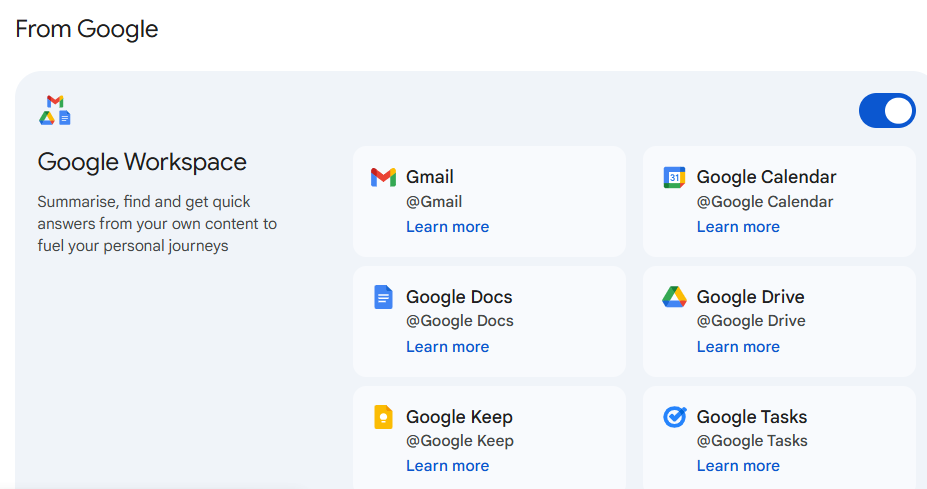
Gemini requires your explicit permission to access your private data and Tasks. To understand how to use Gemini with Google Tasks, you must first enable the Google Workspace Extension. This is the first and mandatory step to activate the Google Gemini tasks feature. This extension acts as a secure bridge, allowing the AI to “read” and “write” within your protected Google environment.
Setup on Desktop:
- Go to gemini.google.com in your browser.
- Click on the Settings gear icon (often represented by a cog or a user-activity menu) located at the bottom left of the screen.
- Select the Extensions option from the menu.
- Locate the Google Workspace extension card and toggle the button to On.
- A confirmation window may appear; ensure you agree to let Gemini access your Workspace data. After this, it will automatically sync with your Gmail, Drive, and Tasks.
Setup on Mobile (Phone/iPhone/iPad): (How to use Gemini with Google Tasks on phone)
- Open the Gemini app on your Android phone, or go to the Gemini tab within the Google app on iPhone/iPad.
- Tap on your profile photo or initial in the top corner to access your account settings.
- Go to the Extensions menu and activate Google Workspace there.
- Ensure “Personal Results” are enabled in your Google Assistant/Gemini settings if you want to use hands-free voice commands while the phone is locked.
Special Note: You will not see ‘Google Tasks’ listed separately in the settings, as the entire control is contained within the ‘Google Workspace’ extension bundle, which covers the entire office suite.
2. Practical Examples: How to Use Gemini with Google Tasks to Add Items
Once the extension is activated, Gemini acts like an active assistant. You can add complex tasks by typing or speaking in natural language. This makes the process of creating Gemini scheduled tasks very simple, as the AI can parse dates like “next Friday” or “every other Monday” without you needing to select them on a calendar.
Some detailed and practical examples:
- Simple Reminder (Can Google Gemini set reminders? – Yes!): You can say, “Gemini, remind me to take my vitamin medicine at 6 PM.” It will immediately create a task with the specified time. This is perfect for quick, fleeting thoughts you don’t want to lose.
- With Deadline and Date: “Schedule a task for a client meeting next Tuesday at 2 PM and also add a note to ‘bring the project report’.” Gemini recognizes the date, time, and adds the extra text as a “Description” within the task.
- Creating Complex Lists: “Prepare a checklist for next week’s trip to Goa including sunscreen, swimwear, and power bank, and save them all to my Google Tasks.” Instead of one bulky task, Gemini can often break these into sub-items or a cohesive list.
- Recurring Tasks: You can even set habits. Try saying, “Add a task to check the house filters on the first of every month.”
- Pro Tip: If Gemini is confused between a general question and a task, you can direct it using the
@Google Taskstag.Example: “@Google Tasks, add a task for paying the electricity bill with tomorrow morning’s deadline.” This forces the AI to trigger the specific Tasks tool.
3. View and Manage Your Tasks via Gemini
The real magic of knowing how to use Gemini with Google Tasks is seen when you need to find or change something in your busy work list. You no longer need to manually open and scroll through the Tasks app on your phone repeatedly; you can simply query your assistant.
- Viewing the Entire List: You can ask, “Gemini, what are my pending tasks for today?” or “Show me which tasks are left with deadlines for this month.” Gemini will present an organized list in front of you, often categorized by time.
- Editing Existing Tasks (Edit): If your plans change, you don’t need to tap through menus. Just say, “Change the time for my ‘Go to gym’ task from 5 PM to 7 AM.” Gemini will search for the matching title and update the metadata instantly.
- Marking Tasks as Complete (Complete): As soon as a job is finished, you can simply say, “Mark the ‘buy milk powder’ task as Done.” It will move from your main list to the ‘Completed’ section, giving you that satisfying sense of progress.
- Deleting Tasks: If a project gets canceled, say, “Remove the ‘book old movie tickets’ task from my list forever.”
4. Advanced and Smart ‘Contextual’ Methods
When you learn how to use Gemini with Google Tasks, you realize it is not just a list maker; it is an AI that understands your digital ecosystem. It can take information from your other Google apps and turn it into tasks, which is called ‘Contextual awareness’. This means the AI looks at the “context” of your life to help you stay organized.
Integration of Gmail and Tasks: Imagine you have received an important email from your boss or an airline. You don’t need to manually copy-paste the details. You can simply say:
“Find my latest hotel booking email and set a reminder in my Google Tasks according to the check-in time.” Gemini will scan your inbox, find the relevant email, extract the date/time, and create the task—all in one step.
Task Planning with Research: If you are planning something new, Gemini can help you brainstorm and execute simultaneously:
“Suggest an easy 7-day diet plan for weight loss and add each day’s meal as a daily task for me.” The AI generates the content and then iterates through your list to populate your schedule, effectively acting as a coach and a secretary.
Troubleshooting & Best Practices
If you are facing any trouble while learning how to use Gemini with Google Tasks, check these detailed checkpoints to ensure a smooth experience:
- Account Synchronization: This is most important. Ensure that the email ID you are using for Gemini is the same ID logged into your Google Tasks and Gmail. If you have multiple accounts, Gemini might be looking at the “wrong” list.
- Admin Permissions: If you are using a company (Workspace) account, IT admins often block extensions for privacy or compliance reasons. In such cases, the “Google Workspace” toggle might be grayed out or missing. It runs most smoothly on personal
@gmail.comaccounts. - Clear and Precise Language: Although Gemini is very smart, it gives the most accurate results when given short and precise instructions. Instead of saying “I need to do something about the car eventually,” try “Add a task to call the mechanic tomorrow at 10 AM.”
- App Updates: Ensure your Google App and Gemini App are updated to the latest version. Legacy versions may not support the full range of Workspace integrations.
Frequently Asked Questions (FAQs)
Here are some common questions and solutions regarding how to use Gemini with Google Tasks:
How to use Gemini with Google Tasks on iPhone or iPad?
On Apple devices, open the main Google app. Tap the profile icon at the top > Settings > Extensions and turn ‘On’ Google Workspace. If you have the dedicated Gemini app, the steps are identical. Once enabled, you can give task commands via voice search or by typing in the chatbox.
Can Google Gemini set reminders?
Yes, absolutely. When you ask Gemini to set a reminder, it technically stores it as a timed task inside your ‘Google Tasks’ app. Because these are synced, you will receive a standard Google notification on your phone and watch at the designated time.
Can I create scheduled tasks through Gemini for someone else?
Currently, Gemini manages the tasks for the primary account holder. While you can’t directly “send” a task to a friend’s list, you can create a task to “Remind me to email John about the report,” which helps you manage your delegation.
Does Gemini work with Google Keep as well?
Yes! The same Workspace extension allows Gemini to interact with Google Keep. You can ask it to “Add milk to my grocery note in Keep” just as easily as you manage Tasks.
Conclusion
Mastering how to use Gemini with Google Tasks takes your digital productivity to a new level. It transforms your phone from a passive screen into a proactive partner. This technology frees you from the mental burden of remembering small, nagging tasks so you can focus on higher-impact creative or professional work. Just speak and organize your life—try this smart experience today and see how much time you save!